







Direct Answer
Der Wechsel von Windows zu Mac ist meist weniger eine Frage des Datentransfers als der anschließenden Einrichtung und Verwaltung. Unternehmen sollten vorab Software-Kompatibilität, Apple Business Manager, MDM, Sicherheitsrichtlinien und die Gerätebereitstellung klären. Eine All-in-One-IT-Plattform wie deeploi kann Einrichtung, App-Installation, Sicherheitskonfiguration und laufendes Gerätemanagement automatisieren – auch ohne eigenes Apple-Know-how.
Key Takeaways
- Data transfer is rarely the problem: built-in tools and the Migration Assistant handle file transfer reliably.
- The real hurdle comes after: enrollment, MDM setup, software deployment, and ongoing macOS management tie up time and expertise.
- Hours become minutes: what takes two to three hours per device manually is done in a few minutes with automation.
- Manage mixed fleets centrally: Mac, Windows, and iOS can all be managed through a single platform like deeploi. It handles enrollment, app installation, and device policies without manual effort.
Switching from Windows to Mac in your company: how to make the move
For many companies, moving from Windows to macOS is a logical modernization decision. Macs are known for their longevity, offer long battery life, and are popular with employees. At the same time, many teams underestimate what the switch means organizationally. The data transfer itself is usually the smallest problem. Everything after it gets harder: enrollment, MDM (Mobile Device Management) setup, software deployment, and the ongoing management of the new fleet. This is exactly where deeploi comes in, taking over the part that quickly gets messy without Apple expertise.
Why companies switch to Mac
The move to macOS has solid reasons behind it. In business use, Macs are known for their longevity, which reduces support effort and replacement purchases over their lifetime. Apple devices also retain a high resale value, which feeds directly into the total cost of ownership.
Another factor is employee preference. According to one study, 70% of employees would be more likely to join a company that lets them choose their work device. This doesn't necessarily argue for a full switch to Apple, but for a deliberate device strategy that takes employee preferences into account. In practice, for many companies that means a mixed fleet of Mac and Windows, managed centrally through a single platform.
{{cta}}
Migrating from Windows to Apple: the switch step by step
The move from Windows to macOS breaks down into four phases. The first three set up the groundwork; phase four is the core of the process and the point where structured IT management makes the difference.
Before the switch: these questions need answers
Before the first device is ordered, two strategic questions need answering. Getting clarity here upfront avoids expensive corrections in the middle of the rollout and lays the groundwork for a clean macOS migration.
- Full switch or mixed setup: a complete move to Mac, or a gradual mixed IT fleet that keeps Windows devices for selected teams.
- Define your MDM strategy: your own MDM tool like Intune, Jamf, or Kandji versus an all-in-one IT platform, depending on your in-house Apple expertise. If you don't have your own IT department, or don't want to build device management internally, a platform like deeploi is usually the better fit, because setup and ongoing operation are covered.
Once these questions are answered, the actual switch to Apple can begin.
Phase 1: Get an overview
Before the first device is ordered, you need a clear overview. What hardware is in use, which user accounts exist, which software is actively used, and which license agreements are running? The most important task in this phase is the compatibility check. Not every application that runs on Windows has a native macOS version.
In parallel: apply for the D-U-N-S number for Apple Business Manager early. Registration takes several days, and without Apple Business Manager (ABM), zero-touch deployment isn't possible.
Phase 2: Device procurement
Apple devices should be purchased only directly from Apple or through an authorized reseller, because only this channel enables zero-touch deployment through Apple Business Manager later on. Orders from unauthorized sources rule out zero-touch deployment and force manual setup via Apple Configurator.
In parallel, set up the ABM account and assign the ordered devices to your MDM servers. This is technically straightforward, but it has to be done before the devices are delivered.
A practical note: the MacBook Air supports only one external monitor. Anyone who has been working with two screens needs a MacBook Pro or a Mac mini. This decision has to be made before ordering.
Phase 3: Data transfer
Data transfer is the part of the switch that demands the most preparation from you. There are two ways to get there.
The Migration Assistant for Windows transfers documents, emails, contacts, calendars, and browser bookmarks. Both devices need to be available at the same time. The transfer runs automatically during the Mac's initial setup, and enrollment in deeploi follows after that.
The alternative is manual transfer via network, USB stick, or external hard drive. Company data shouldn't live locally on the device anyway. SharePoint, OneDrive, or other cloud storage are the better route, because they work independently of the end device and make the transfer much simpler.
Phase 4: Enrollment and setup
Once the data has been transferred, the real IT part of the switch begins. The new device has to be brought into management, equipped with the right apps, secured, and configured for day-to-day use. This is where it's decided whether the switch runs smoothly or turns into a permanent construction site.
This step typically involves four tasks:
- The device has to be registered in a management system and assigned to a responsible person.
- All required applications have to be installed and brought up to date.
- Security-relevant settings like disk encryption, password policies, and automatic updates have to be enforced.
- The device has to be documented so it's always clear which hardware is running which software.
Done manually, this step usually takes two to three hours per device, because you have to download and install every app individually, set every policy by hand, and check every security configuration. For a single device, that's manageable. For a rollout of twenty devices, it quickly turns into a full working week, and every manual step is a potential source of error.
This is exactly where an all-in-one IT platform like deeploi comes in.
Switching to Apple with deeploi: setup and management from one source
After enrollment, the platform takes over the complete setup, without anyone having to lift a finger.
- Enrollment into the platform: the device is registered in central management and assigned to the responsible IT owner.
- Automatic app installation: through central software deployment, all approved applications are installed without any manual download.
- Device policies are rolled out: FileVault encryption, password complexity, and update enforcement take effect without any action from employees.
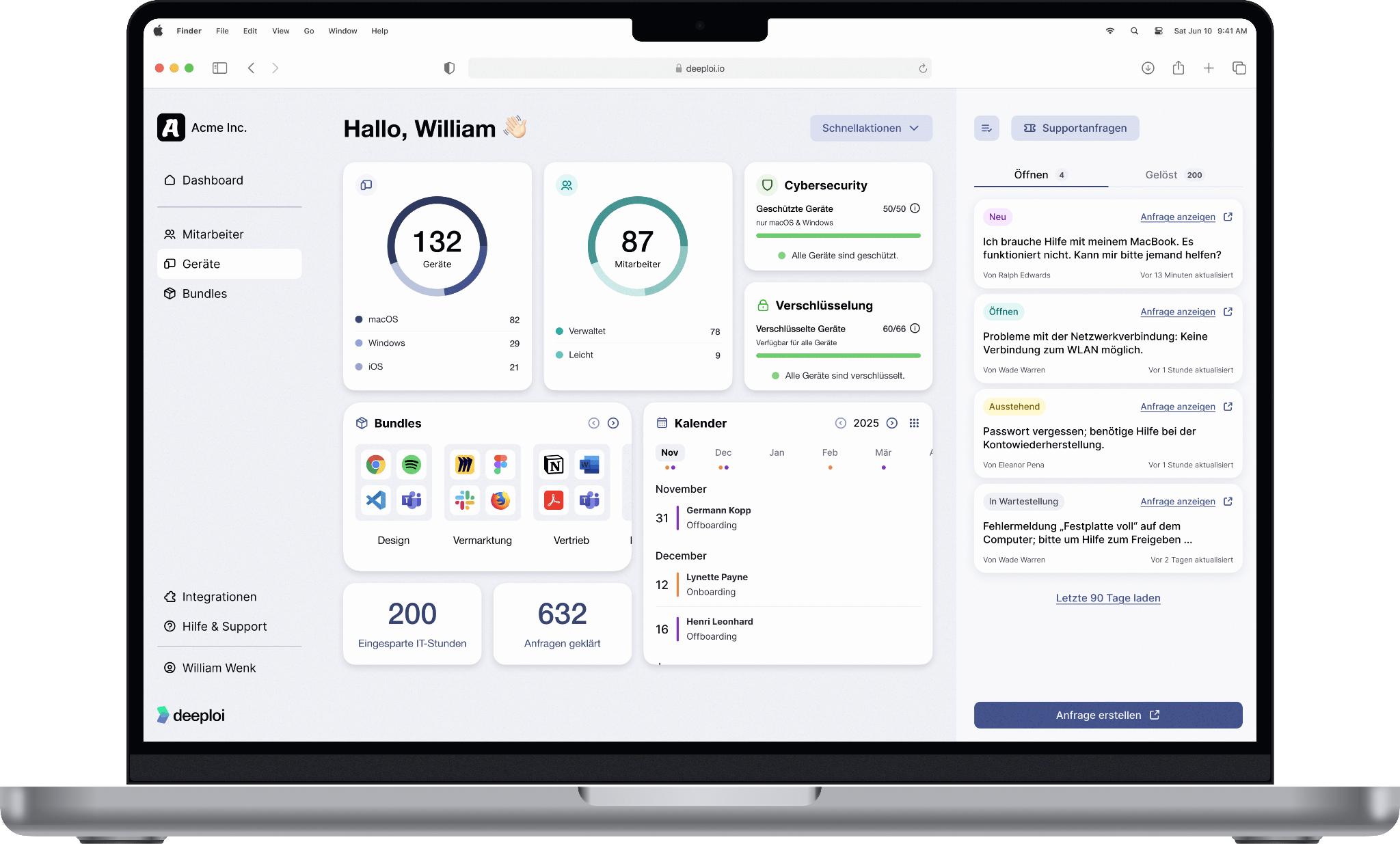
- Added to central management: status, assignment, and configuration are immediately visible to IT owners.
- Central inventory transparency: hardware, installed software, and device status flow automatically into the dashboard.
Employees start their device and find their work environment already set up, while IT owners, HR managers, or founders keep full visibility.
Other deeploi advantages at a glance:
✓ Certified Apple Partner and member of the Apple Consultants Network, with expertise in managing Apple devices in business
✓ Device procurement through the authorized reseller COMSPOT integrated directly
✓ ISO 27001-certified platform for audited information security
✓ GDPR-compliant management with data processing under European regulations
✓ Human support in German and English, with an average response time of 12 minutes and a 30-minute SLA
✓ Transparent per-user pricing, with no hidden hourly billing
✓ 200+ customers and more than 17,000 managed users
{{cta}}
Common mistakes when switching to Apple in a company
We see these mistakes again and again, and they don't come from ignorance. At first glance the switch looks simpler than it is, and that's exactly where the stumbling blocks lie.
- Underestimating OS logic: macOS and Windows solve many tasks fundamentally differently, from window management to app installation. Employees used to Windows don't just have to learn new keyboard shortcuts, they sometimes have to rethink how they work.
- Overlooking specialized hardware: printers, scanners, or measuring devices often come with a configuration suite that exists only for Windows. On the Mac, the device then runs only in its default settings, without advanced features.
- Not checking the screen setup: the MacBook Air supports only one external monitor. Anyone who needs two screens should plan for a MacBook Pro or a Mac mini, and do so before ordering.
- Taking app configurations for granted: settings, profiles, and macros can't be transferred automatically. Every application has to be reconfigured on the Mac, and this effort is regularly underestimated.
- Ignoring the corporate context: Windows is historically more deeply embedded in company infrastructure, for example with Active Directory or legacy systems. Without a compatibility check, gaps remain that only show up in daily operation.
Not every one of these points can be automated. Whether a specific piece of hardware is compatible with macOS, or which screen suits the device, remains a question of preparation. Setup and management are a different story. Exactly where Windows was historically strong, in management, monitoring, and consistent configuration, deeploi steps in for macOS and iOS. Apps are installed centrally, security policies apply the same way on every device, and device status is traceable at any time. The inconsistencies that come from manual setup on each device fall away.
Conclusion: getting the Apple switch right
The switch from Windows to Apple rarely fails at the data transfer. The real effort begins after, with setting up, securing, and managing the new devices. Thinking through these phases in advance, from software compatibility to device choice to the rollout plan, avoids the most common stumbling blocks.
Done manually, setup costs several hours per device. With a platform like deeploi, it runs automatically after enrollment, consistently and securely, even when no one on the team has specialized Apple knowledge. In the end, what matters isn't just how much effort the switch took, but that the new devices run reliably and no one on the team feels like they're carrying IT responsibility on the side.
FAQ
Does Microsoft 365 work fully on the Mac?
Word, Excel, PowerPoint, Outlook, and Teams run natively on macOS with largely equivalent functionality. Limitations exist for VBA macros and PowerPivot. For most business use cases, Microsoft 365 is fully usable on the Mac.
Can we run Macs and Windows PCs side by side?
Yes, in practice this is even the norm. It only gets demanding when both systems are managed through separate tools. A platform like deeploi, which covers Mac and Windows together, bundles management in one place.
Which software doesn't run on macOS?
Specialized Windows industry software, certain CAD tools, and applications with Windows-only configuration suites don't run natively on macOS. Possible fallbacks: Parallels Desktop for emulation, web versions of the software, or Virtual Desktop Infrastructure (VDI). A compatibility check before the switch is therefore a necessary first step.
Do I need my own IT expertise to manage Apple devices?
Yes. Apple Business Manager, MDM setup, and configuration profiles require specialized Apple knowledge, both during setup and in ongoing operation. A platform like deeploi takes over these tasks for teams that don't want to build this IT expertise internally, or would rather put their time into other projects.